Running vVols in VMware Cloud on AWS (VMC) on Everpure Cloud Dedicated (EC Dedicated) on AWS
Another post of a cool project this week. With the tools we have available during our hackathon it was asked if we could run vVols in VMware Cloud on AWS. Because of the locked down nature of VMC we could not run vVols directly on that cluster, but I did find a way that we could. Dive into this blog post to see how vVols run on EC Dedicated.
If you are not familiar with Everpure Cloud Dedicated it is a hosted Everpure array in AWS that can function as storage for EC2 instances or even be a replication target for your on-premises FlashArrays.
Deploying a Nested Lab on VMware Cloud on AWS.
William Lam has a great post on Nested ESXi on VMware Cloud on AWS (VMC) which I followed. The steps include the following:
- Create a Content Library in VMC subscribed to the Nested ESXi Repo
- Provision out your Nested ESXi Servers from the templates.
- Extract your vCenter Server ISO, and deploy the OVA to VMC.
- Access your VC on port 5480 and finalize the deployment.
Once this was done, I configured my vCenter Server by creating a Cluster, Adding in my Hosts and Enabling the Software iSCSI Adapter.
Deploying an Everpure Cloud Dedicated on AWS
The Everpure Cloud Dedicated can be deployed as part of an Application Stack from AWS. The deployment is pretty straight forward and the below video walks you through everything you need to know.
Configuring my Nested Lab to Access the Everpure Cloud Dedicated on AWS
The first thing you will need to do is make sure the your AWS VPC has been added to your VMC environment. In our case we had to make sure to add in a route in AWS to communicate back to our VMC environment.
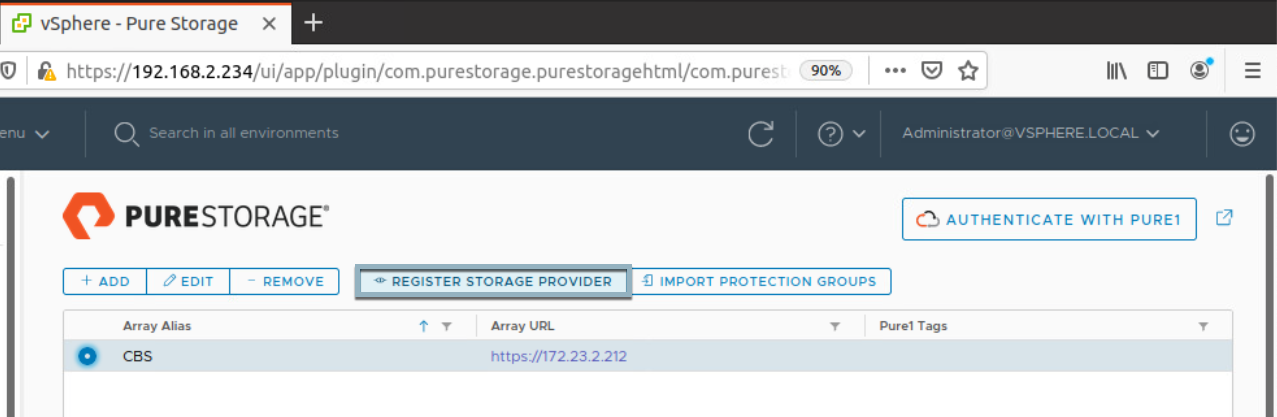
Next we will install the Everpure vSphere Client Plugin and add our Everpure Cloud Dedicated Array. Then Click on the Array and Register Storage Provider
Now let’s login to our Everpure Cloud Dedicated and head over to Settings -> Network and find out our iSCSI IPs. If you are familiar with the FlashArray or FlashBlade UI the CLoud Block Store UI will be very familiar.

Next we will configure iSCSI on our ESXi Hosts. Navigate to the iSCSI Software Adapter -> Dynamic Discovery Targets and add in the iSCSI IPs from the Everpure Cloud Dedicated. Repeat for each ESXi Host.
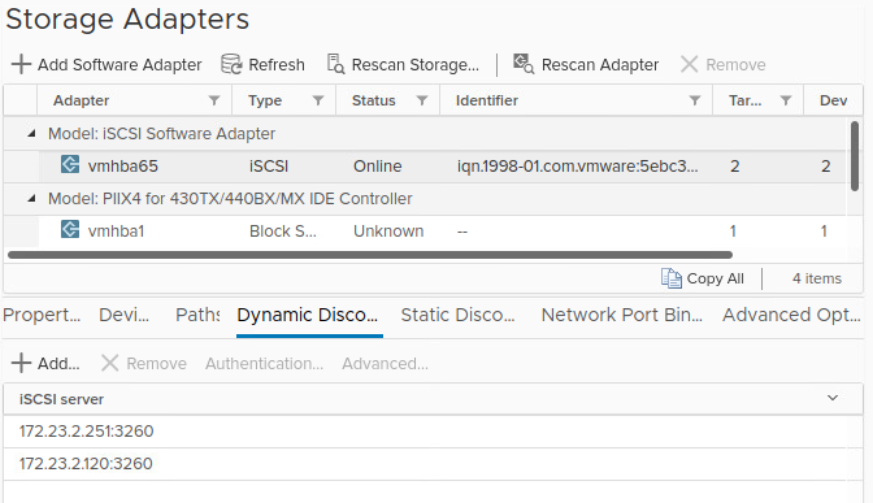
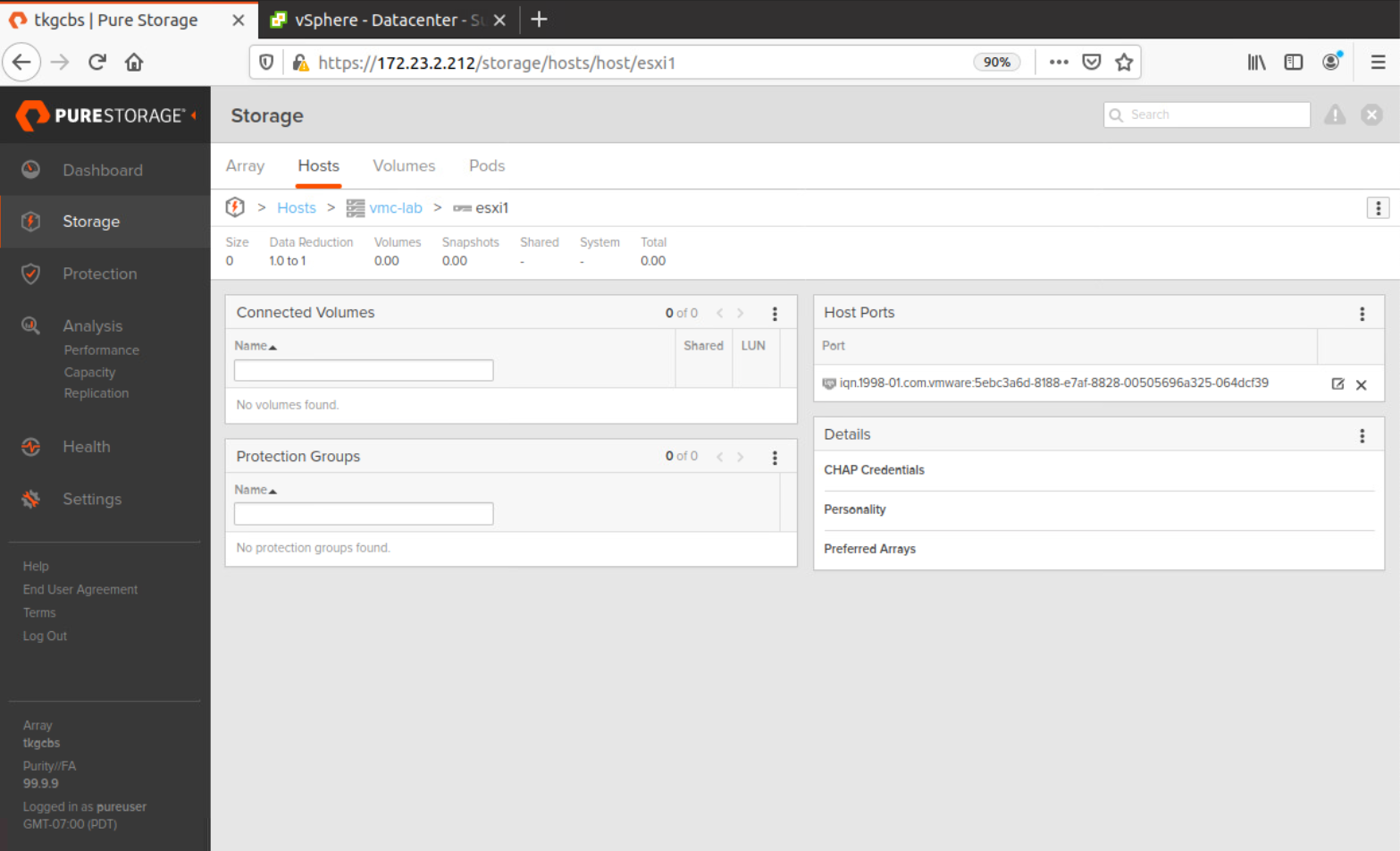
Make a note of the iSCSI IQN that is set in the iSCSI Software Adapter and Navigate back to the Everpure Cloud Dedicated UI. Navigate to Storage -> Hosts and Create the Host. Repeat for each additional ESXi Host.
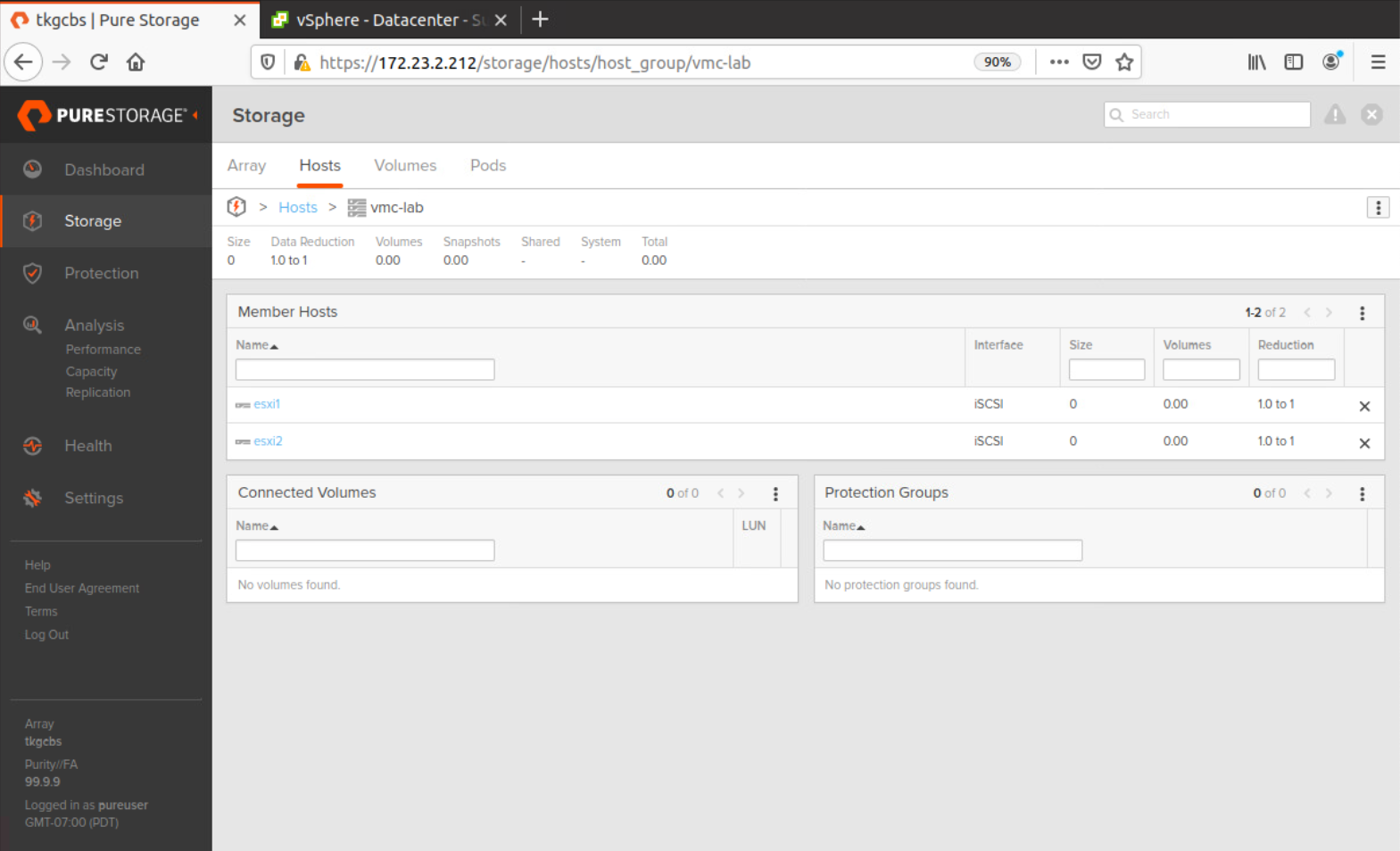
Next create a Host Group by navigating to Storage -> Hosts and adding in your ESXi Hosts to the group.
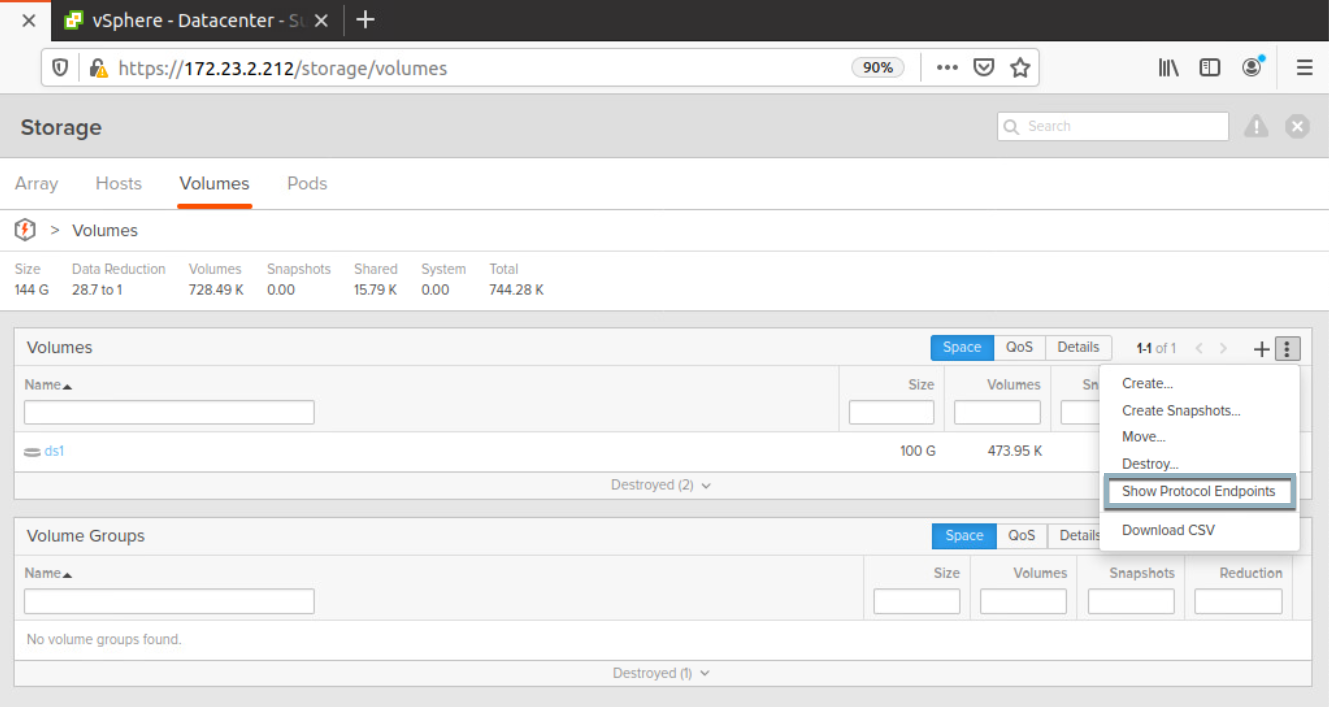
Next we will create the Protocol Endpoint so our Lab Environment can communicate with vVols on the Everpure Cloud Dedicated. Navigate to Storage -> Volumes and select the three dots to Show Protocol Endpoints
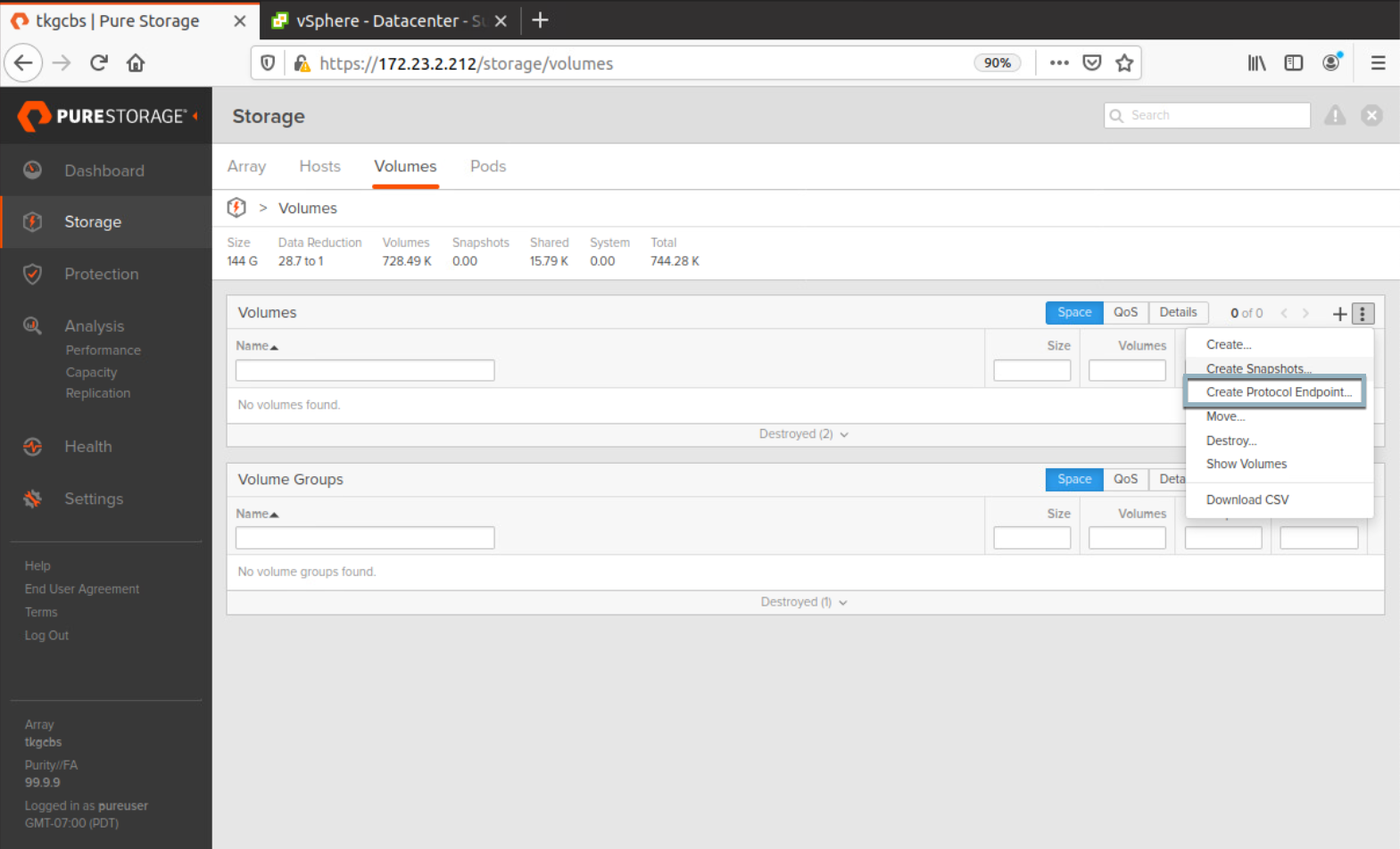
Click on the 3 dots again to Create Protocol Endpoint and name it pure-protocol-endpoint.
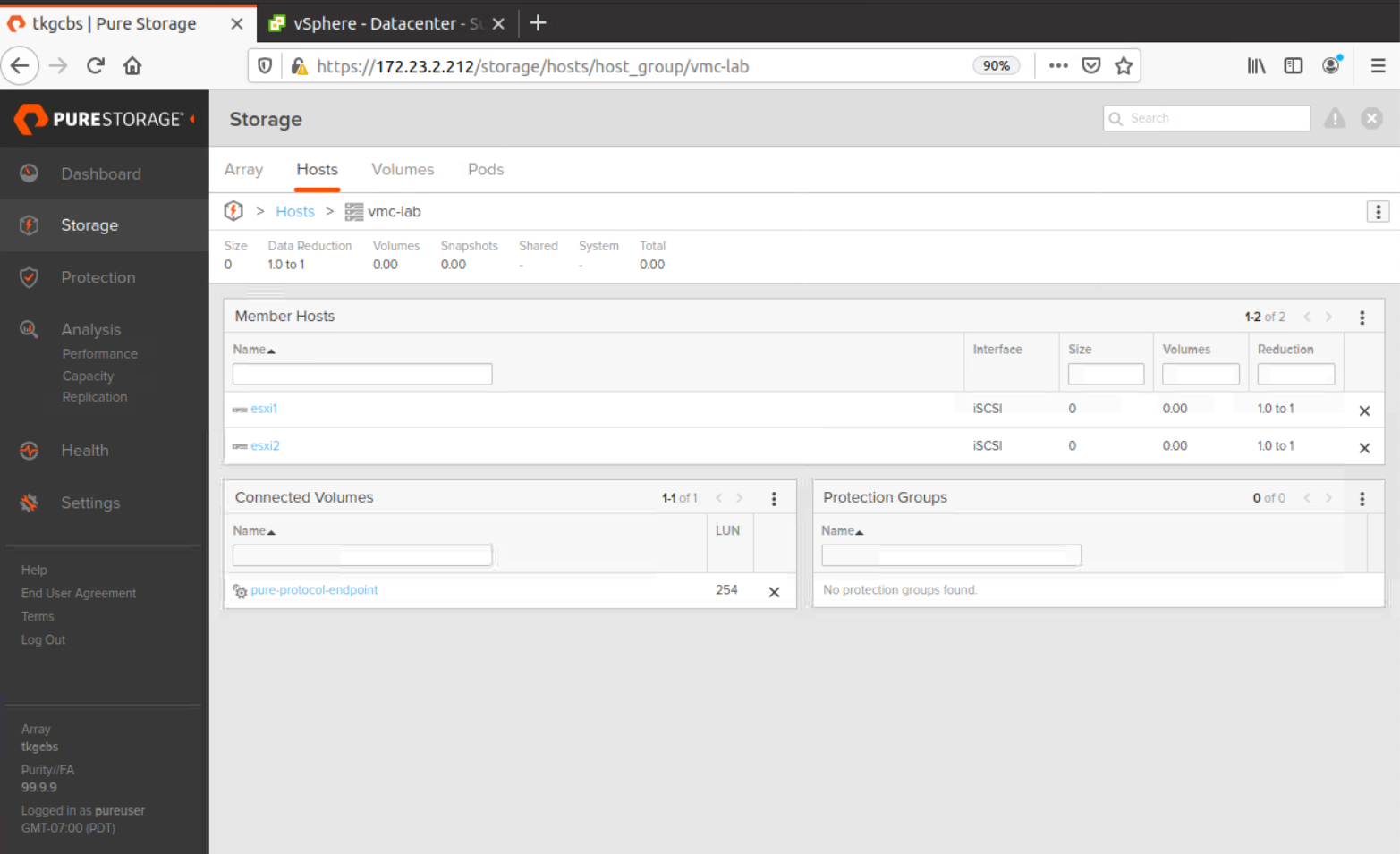
Next attach the Pure Protocol Endpoint to your Host Group
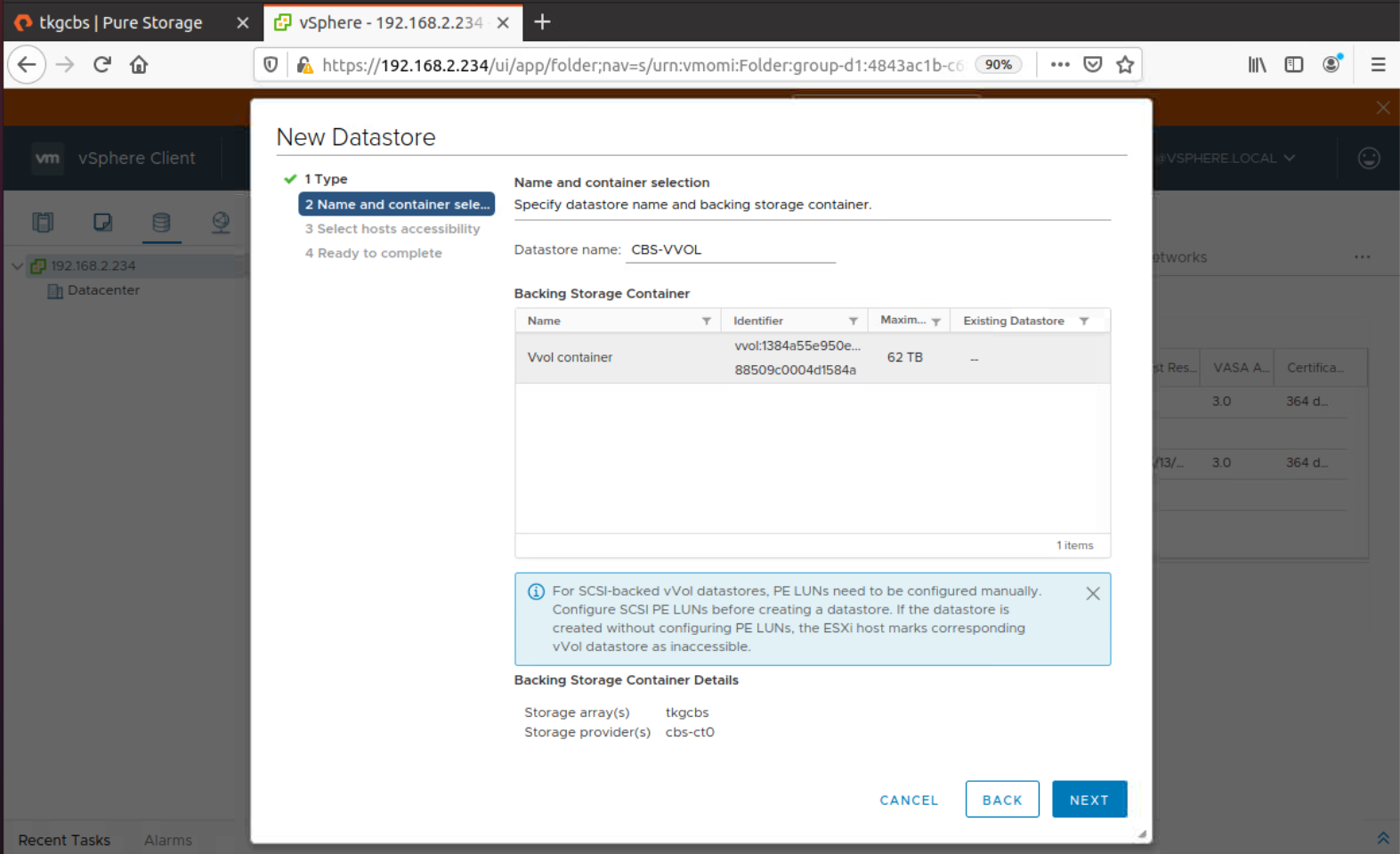
Now it is time to create our vVol Datastore. Right Click your Cluster select Storage -> New Datastore -> vVol. You should see the vVol Container and see that it is backed by our EC Dedicated Array connected to ct0. Click Next and attach it to all hosts in the cluster.
Your vVol Datastore is now provisioned. You are now able to provision workloads and storage policies running on EC Dedicated inside of a Nested ESXi Cluster running on VMware Cloud on AWS.
To sum things up Andrew Miller made a great comment on this.
Why?
— Andrew Miller (@andriven) May 13, 2020
Because I can!
Even though this is unsupported, it shows how flexible infrastructure can be. We have essentially virtualized both compute and storage in this lab environment.
Conclusion
I feel this was a pretty cool example of the flexibility you have with both the Everpure Cloud Dedicated and VMware Cloud on AWS. What else will this hackathon bring? You never know!
Questions or Comments? Leave them below!
comments powered by Disqus